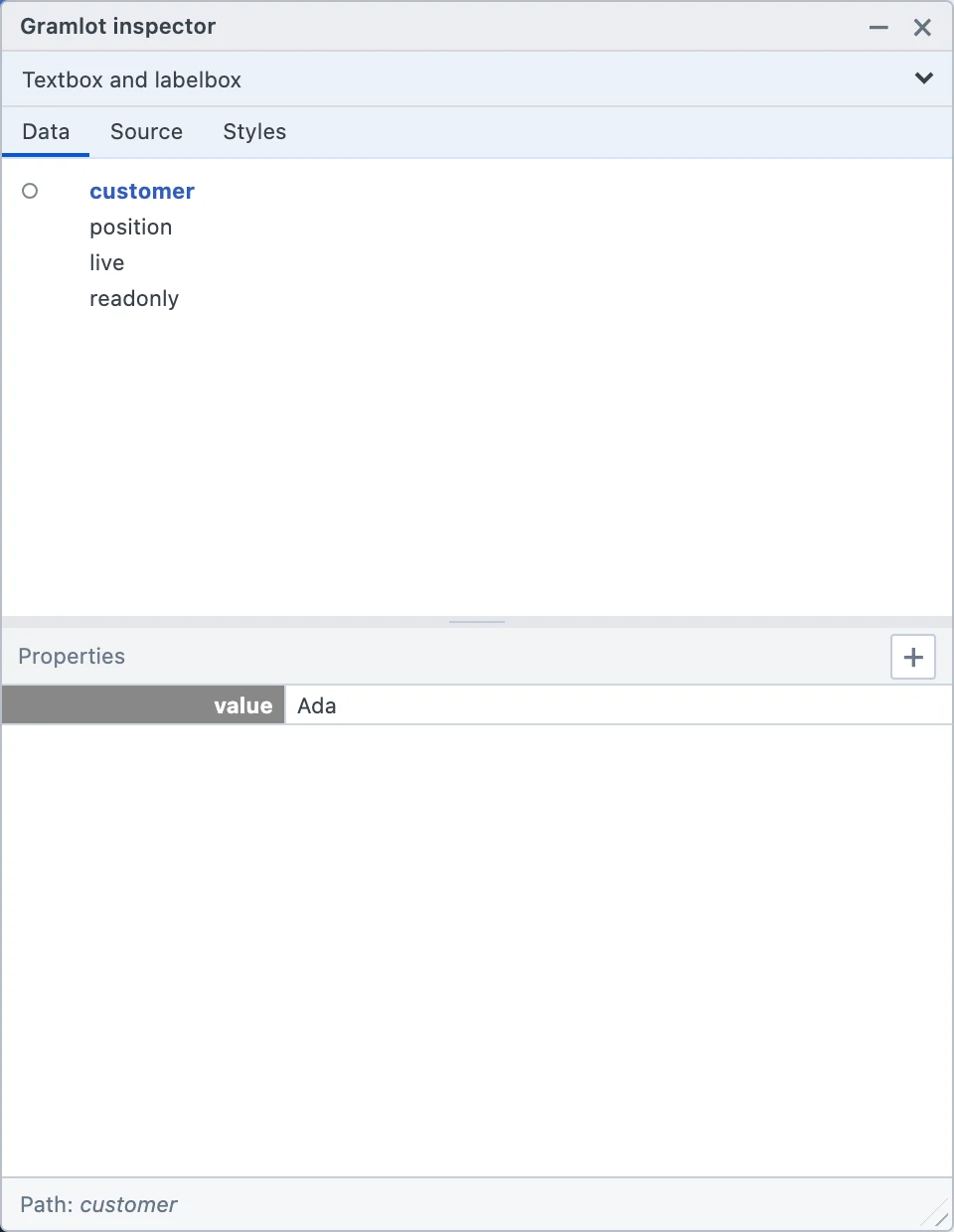
Watch the inspector grow with the example.
Change Data, edit the div’s Source, add a color, then insert and move a branch. Undo restores the earlier position. The introduction records this sequence with the development inspector.
A practical answer to “why did that change?”
A screenshot shows the result. The inspector lets you examine the structure and values behind it. When learning binding, keep the relevant Data path in view as you change a control. When learning composition, follow the Source branch that declares the section.
This turns the gallery from a collection of attractive controls into a place to investigate the framework’s model.
Follow one calculation.
In the stay-estimate walkthrough, follow subtotal, discount, total and deposit in Data. Change the stay length and see which values follow it. Compare a rejected draft with the previous accepted value.
Then change the discount expression in Python, save and reload the page. Enter the same five-night stay again and inspect the new result. Formula source changes use the normal page-loading contract; the video does not edit executable formula text in the live inspector.
Use Source and Styles for different questions.
Source helps answer which declaration, attribute or binding produced a part of the interface. Styles helps investigate its presentation. Neither makes a temporary exploration into a saved application change. To keep a change, update the authored page and verify it.
The gallery also shows the page’s source code, so you can relate runtime structure to what the author wrote.
Take a focused experiment into your own work.
Choose one behavior, predict its result and then inspect it. For a formula, change one dependency. For remote content, change the selected record and observe the mounted branch. For validation, deliberately make an invalid edit.
The inspector is a development and learning tool. It does not replace endpoint authorization, application tests or user acceptance of a workflow.